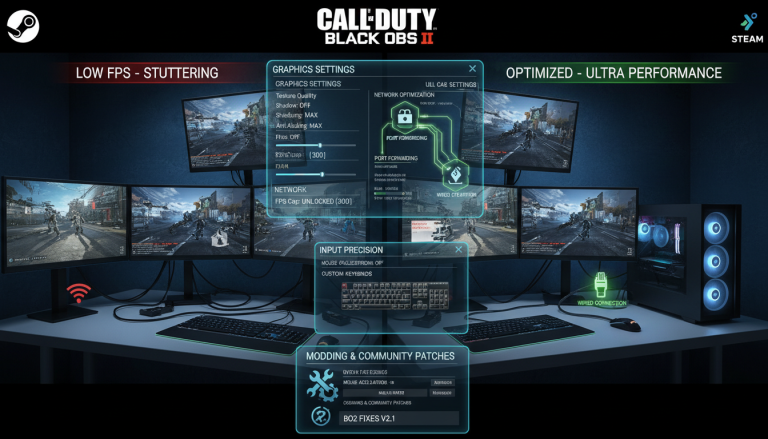
Explore the best ways to optimize your Call of Duty: Black Ops II Video game on Steam with our friendly roundup post tailored for players in India.
How to Optimize Your Gameplay Experience with Black Ops II on Steam
“Success is where preparation and opportunity meet,” said Bobby Unser. This saying is true for anyone wanting to win in this classic game. Whether you’re a pro or new, getting your setup right is the ultimate secret to staying ahead.

Getting your hardware ready means your computer will run well during tough battles. By adjusting your settings, you’ll get the most out of the call of duty black ops ii steam version. We aim to help you reach top performance as you play this legendary call of duty: black ops ii video game again.
Key Takeaways
- Understand why system optimization is vital for competitive play.
- Learn how to configure your hardware for smoother frame rates.
- Discover essential settings for the classic shooter on modern PCs.
- Improve your reaction time by reducing input lag effectively.
- Ensure a stable connection for a seamless online experience.
Getting Started with Call of Duty: Black Ops II Video Game on Steam
Starting your adventure with the call of duty: black ops ii video game is thrilling. Before diving into the action, make sure your PC can handle the game. Taking these steps will prevent slowdowns and ensure a seamless gaming experience.

System Requirements and Compatibility
To play the call of duty: black ops ii video game, your computer needs to meet certain standards. Check your system against the official requirements to avoid crashes or slow performance. You can see your current hardware by looking at your system information in Windows.
| Component | Minimum Requirement | Recommended Specs |
|---|---|---|
| Operating System | Windows 7 64-bit | Windows 10/11 64-bit |
| Processor | Intel Core 2 Duo E8200 | Intel Core i3 or better |
| Memory | 2 GB RAM | 4 GB RAM or higher |
| Graphics | NVIDIA GeForce 8800GT | NVIDIA GeForce GTX 650 |
Verifying Game Files for Stability
Even with the right hardware, corrupted files can cause crashes. Steam has a built-in tool to fix this. It checks your game files against the official versions and fixes any issues.
To use this tool, right-click the game in Steam and choose Properties. Go to the Local Files tab and click Verify integrity of game files. This simple step is key to keeping your game stable.
Optimizing Graphics Settings for Smooth Performance
To get the best from your gaming setup while playing black ops 2, start with the right settings. Even with modern hardware, older games can stutter if settings don’t match your monitor. Adjusting a few settings can make your game run smoothly and feel responsive.

Adjusting Texture Quality and Shadow Maps
Texture quality and shadow maps affect how much your game uses your computer’s power. Lowering these settings can make your game run faster without looking bad. Medium or low settings usually work best for fast-paced games.
Lowering shadow map resolution helps your GPU handle complex scenes better. This change stops your game from freezing during big explosions. Choosing performance over high textures is key for players who want speed.
Managing Anti-Aliasing and Vertical Sync
Anti-aliasing makes edges look smoother but uses a lot of computer power. If your game runs slow, try lowering or turning off anti-aliasing. Image clarity is key, but fast play is more important in shooters.
Vertical Sync, or V-Sync, stops screen tearing but can slow down your aim. It’s best to turn off V-Sync for quicker and more precise aiming in black ops 2.
Impact of Post-Processing Effects on FPS
Effects like depth of field and motion blur make the game look more like a movie. But, they can slow down your game and make it harder to see during fights. Turning these off can help you see better and play faster in black ops 2.
Finding the right mix of looks and performance is up to you. Start by turning off all post-processing effects and then add them back one by one. This way, you can see which effects matter most to you without losing too much quality.
Enhancing Multiplayer Black Ops 2 Connectivity
For gamers in India, a good network is key to winning in fast games. A stable internet is the heart of a great multiplayer black ops 2 game. When your data moves quickly, you face less lag and more wins.

Port Forwarding for Better Matchmaking
Port forwarding helps your router send game traffic straight to your device. By opening the right ports for black ops 2, your connection to servers gets better. This makes finding matches easier and keeps you connected longer.
To start, open your router’s settings in a web browser. Look for “Port Forwarding” or “Virtual Server” and make a new rule. Use the game’s TCP and UDP ports. Consistency is key, so set a static IP address for your PC to keep settings from changing after a reboot.
Reducing Latency for Indian Servers
Latency is a big issue for players from different places. To cut down on lag, use a wired Ethernet connection instead of Wi-Fi. This change makes your game more stable by keeping your ping steady.
If you still see delays, check if other apps are using your bandwidth. Stop streaming or big downloads before playing multiplayer black ops 2. This lets your game use more resources, making your play smoother and more responsive.
Mastering Zombies Black Ops 2 Performance
Playing cod black ops 2 can really test your computer’s limits. When zombies fill the screen, your system must handle a lot of data at once. This can cause frame drops if your computer isn’t ready for zombies black ops 2.

Managing Resource Allocation During High-Round Gameplay
To keep the game running smoothly, focus on the game engine. Closing unnecessary background applications is key to freeing up RAM and CPU. Use the Task Manager to find and stop programs that use too much memory while you play.
Also, set the game process priority to “High” in the Windows Task Manager. This makes sure your processor works on the game, not other tasks. By optimizing your resource allocation, you ensure the game engine runs smoothly, even in intense moments.
Optimizing Audio Settings to Prevent Stuttering
Audio settings can sometimes cause game performance issues, leading to stuttering or sound glitches. If you notice audio lag, try lowering your sound quality in the Windows Control Panel. Reducing the sample rate to 16-bit, 44100 Hz can often fix these problems and keep your frame rate steady.
Also, make sure your audio drivers are up to date. Old drivers can cause performance problems in games. Keeping your audio and processing power synchronized is crucial for a seamless survival experience in cod black ops 2.
Essential Software Tweaks for Activision Black Ops II
Even older games like cod black ops 2 can run smoothly on modern Windows 10 and 11 systems with the right tweaks. Your current hardware might need a little extra help to handle it perfectly. These adjustments make sure your system resources are used where they’re needed most.

Configuring the Steam Launch Options
Steam launch options are a powerful tool to make the game run better on modern processors. By right-clicking the game in your library and selecting properties, you can input specific commands. These commands can force the game to use specific CPU cores or memory settings, which often fixes common stuttering issues.
Updating GPU Drivers for Legacy Titles
Many players forget that updating GPU drivers is key for older games too. Manufacturers often include special optimizations for cod black ops 2 in their latest driver packages. Keeping your drivers current is a simple yet effective way to ensure the game engine works well with your graphics card.
Using Third-Party Compatibility Patches
Sometimes, the official game files need a little help from the community to work well on modern hardware. There are several third-party compatibility patches available that fix long-standing issues with the engine of cod black ops 2. These community-developed tools are highly recommended for players who face persistent crashes or graphical glitches that standard settings can’t fix.
Managing FPS Black Ops II Frame Rate Caps
You can boost your game’s smoothness by tweaking frame rate caps in activision black ops ii. Many players feel the default limits are too low for today’s high-refresh-rate monitors. By removing these limits, your hardware can run at its best.

Unlocking Frame Rates via Configuration Files
To get rid of default limits, find the game’s config file in your Steam directory. Look for the config.cfg file, where your main performance settings are stored. You’ll need to open it with a simple text editor like Notepad.
After opening the file, find the “com_maxfps” line. This line is usually set low for older hardware stability. Change this value to a higher number, like 144 or 250, matching your monitor’s capabilities. Save the file and restart your game.
Balancing Refresh Rates with Monitor Capabilities
Unlocking your frame rate in activision black ops ii is thrilling, but remember your monitor’s refresh rate. If your frame rate is too high, you might see screen tearing. This occurs when your GPU sends frames faster than your display can show them.
To get the best experience, try to cap your frame rate at a value that matches or is a multiple of your monitor’s refresh rate. This ensures a consistent and fluid visual experience without overloading your system. Aligning these settings lets you enjoy the game as it was meant to be played.
Improving Input Latency and Mouse Sensitivity
Precision is key in activision black ops ii. A small delay can mean the difference between life and death. It’s important to remove any software that might affect your aim.

Disabling Mouse Acceleration in Windows
Windows has a feature called “Enhance Pointer Precision” that acts like mouse acceleration. This setting changes your cursor speed, making it hard to develop muscle memory. For competitive gaming, you need a 1:1 ratio between your mouse movement and on-screen action.
- Open the Control Panel and navigate to “Hardware and Sound.”
- Select “Mouse” to open the Mouse Properties window.
- Click on the “Pointer Options” tab.
- Uncheck the box labeled “Enhance pointer precision” and click Apply.
“Consistency is the secret weapon of every top-tier player. By disabling acceleration, you ensure that your aim remains predictable regardless of how quickly you flick your wrist.”
Fine-Tuning In-Game Sensitivity Settings
After optimizing Windows, adjust your sensitivity in activision black ops ii. Many players use too high sensitivity, leading to overshooting. Find the right balance between your mouse DPI and in-game slider for smooth tracking.
Start with a low sensitivity and increase it until you can make quick turns. Muscle memory comes from repetition. Stick to your chosen setting for natural and responsive movements in activision black ops ii.
Customizing Controls for Competitive Play
Getting control of your movement starts with a setup for fps black ops ii that’s just right for you. When you adjust your inputs to fit your reflexes, you get a big advantage in fast fights. A good control setup lets you do complex moves with absolute precision.

Mapping Keybinds for Efficient Movement
Default settings might not be fast enough for competitive play. You should change your keys to keep your hands close to the movement controls. This way, you can slide, jump, and crouch while keeping your aim sharp.
Many top players like using side mouse buttons for special moves or melee. Moving these actions away from your movement keys lets you control your character’s position better. Try different layouts to find one that feels natural and easy to use.
Utilizing Controller Support on PC
If you like a more relaxed setup, the game has great controller support for PC. Make sure your controller is set up right to use aim assist features well. The right setup stops input lag and keeps your button layout the same in every game.
When using a controller, adjust your sensitivity to balance speed and accuracy. You can also tweak dead zones with third-party software if the defaults are too slow. The table below shows the main differences between input methods to help you choose the best setup for you.
| Feature | Keyboard & Mouse | Controller |
|---|---|---|
| Aim Precision | High (Manual) | Moderate (Assisted) |
| Movement Speed | Very Fast | Fluid/Consistent |
| Customization | Extensive | Limited |
| Learning Curve | Steep | Gentle |
The best setup for fps black ops ii is one that lets you react fast to enemies. Whether you prefer a mouse or a controller, keep practicing to get better.
Addressing Common Bugs in Call of Duty Black Ops
Many players face bugs in classic games. These issues can be annoying, but most can be fixed easily. You don’t need to be a tech expert to make your game run smoothly again.

Fixing Startup Crashes and Black Screens
First, check your game’s compatibility settings if it won’t launch or shows a black screen. Right-click the game executable in your Steam folder and select properties. Then, enable compatibility mode for Windows 7 or 8. This can solve problems between old software and new operating systems.
Try launching the game in windowed mode by adding “-windowed” to your Steam launch options. This trick can help avoid display errors that cause a black screen at startup.
Resolving DirectX Errors
DirectX errors often stem from missing or outdated runtime libraries. To fix this, go to the game’s installation folder and find the “Redist” directory. Running the installers there will ensure your system has the needed files for fps black ops ii performance.
It’s also crucial to update your graphics card drivers. Manufacturers often release updates that improve compatibility for games like call of duty black ops. Keeping your drivers up to date helps your hardware work well with the game engine.
| Issue Type | Primary Solution | Secondary Fix |
|---|---|---|
| Startup Crash | Verify Game Files | Compatibility Mode |
| Black Screen | Windowed Mode | Update GPU Drivers |
| DirectX Error | Install Redistributables | Update DirectX Runtime |
| Low fps black ops ii | Adjust Settings | Disable Background Apps |
Community Resources for Call of Duty Black Ops 7 and Legacy Titles
The call of duty sequel series has a lively community, even years after older titles were released. Whether you’re searching for call of duty black ops 7 news or a busy server, the global player base is ready to help. Joining these groups keeps your favorite games exciting and fresh.

Finding Active Servers and Modding Communities
Looking for a game in older titles? You might need to look beyond official systems. Fans host dedicated servers for low latency and consistent play. Find these spots on Discord, Reddit, and gaming forums.
Modding communities keep these games alive with new life. They fix bugs and add new mechanics. Joining these groups offers many benefits:
- Access to private servers with active moderation.
- Early alerts for community tournaments.
- Support from experienced developers and modders.
“The true longevity of a classic game is not determined by the developer, but by the passion and creativity of the players who refuse to let it fade away.”
Staying Updated with Steam Workshop Content
Steam Workshop is key for customizing your game easily. It lets you browse, install, and manage community content with a few clicks. You’ll find everything from texture packs to new map layouts.
To keep up, just subscribe to your favorite creators on Steam. The client will handle downloads and updates, keeping your game compatible. Regularly checking the workshop means you won’t miss out on the latest innovations.
Comparing Call of Duty Black Ops II Steam Performance Across Hardware
Your PC hardware sets the stage for your gaming experience in this classic title. The call of duty black ops ii steam version reacts differently based on your setup. Knowing these differences can help you get the most out of your machine.

Performance on Budget Gaming Laptops
Laptops can get hot during long gaming sessions, which might slow them down. To keep the game running smoothly, use a cooling pad or elevate your laptop. Also, set your Windows power settings to “High Performance” to give your CPU and GPU the power they need.
It’s smart to close unnecessary apps while playing call of duty black ops ii steam. This saves memory and prevents sudden spikes in usage. Keeping your drivers up to date also helps your laptop talk better with the game engine.
Optimizing for High-End Desktop Rigs
High-end desktops let you push the game’s visuals to the limit. Use features like supersampling or high-quality shadow maps for a sharper look. These settings enhance your gaming experience, making it more immersive.
Desktop users should aim for high frame rates for smooth gameplay. Use your graphics card’s control panel to force vertical sync or limit frame rates. This prevents screen tearing and keeps the call of duty black ops ii steam game running smoothly.
| Hardware Tier | Thermal Focus | Visual Target | Performance Goal |
|---|---|---|---|
| Budget Laptop | High (Cooling Pad) | Medium Settings | Stable 60 FPS |
| Mid-Range PC | Moderate | High Settings | Consistent 100+ FPS |
| High-End Desktop | Low (Airflow) | Ultra/4K | Max Refresh Rate |
Conclusion
Improving your setup for Call of Duty: Black Ops II changes how you play this classic game. You now know how to make your hardware work its best. This keeps your game stable for every match.
Playing better means you’ll enjoy every intense battle more. Making small changes to your settings can really help you win. These tweaks let you focus on your aim and strategy without distraction.
Playing this game on Steam again gives you a new view on competitive play. You can dive into the action knowing your system is ready. Your hard work in optimizing settings leads to smoother play and quicker reactions.
Don’t forget to share your favorite strategies and tips on the Steam Workshop. Connecting with other players keeps the game’s spirit alive. Keep your aim sharp and your game smooth as you conquer the battlefield.
FAQ
How can I ensure the Call of Duty: Black Ops II Steam version runs smoothly on a modern PC?
What are the best graphics settings to boost my FPS Black Ops II performance?
How do I fix connectivity issues and lag in multiplayer Black Ops 2?
Why does Zombies Black Ops 2 sometimes stutter during high-round matches?
Can I unlock the frame rate cap in the Call of Duty: Black Ops II video game?
How do I improve my aiming precision in Call of Duty Black Ops?
Are there any community resources for modding or news on Call of Duty Black Ops 7?
What should I do if I encounter a DirectX error when launching COD Black Ops 2?